> ## Documentation Index
> Fetch the complete documentation index at: https://developer.omni.z-api.io/llms.txt
> Use this file to discover all available pages before exploring further.
# Team and roles
> Invite people to the workspace and understand what each role can do
export const projectName = 'Omni Z-API';
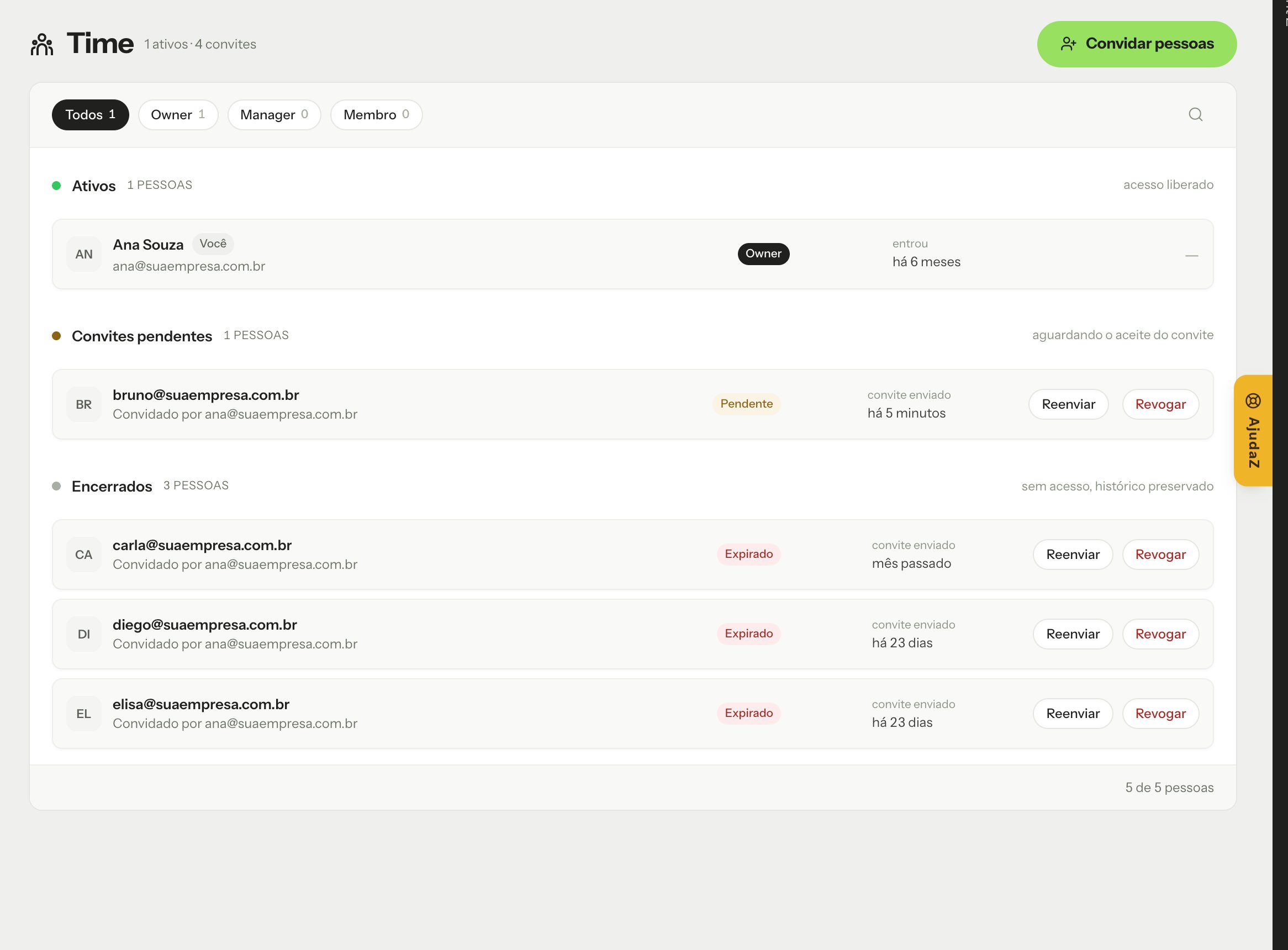
In {projectName}, each person on the team has a **role** in the workspace. The role defines what they see and what they can change in the dashboard. The team is in **Administration → Team**.
 ## Roles
### Owner
Workspace owner. Has access to **everything**, including what no other role can do:
* Manage billing: subscribe to channels, pay invoices and change the payment method.
* Access the [Security](/en/security/introduction) menu: API credentials, IP restriction and SDK configuration.
* Promote a Member to Manager or demote a Manager to Member.
The Owner cannot be removed from the workspace or have their role changed.
### Manager
Runs the day-to-day operation, without access to billing and security:
* Creates, edits and deletes channels and templates.
* Invites people, resends and revokes invitations.
* Removes **only Members**. Cannot remove another Manager or the Owner.
* Sees billing, without changing it, and checks the [Audit log](/en/security/audit).
### Member
Follows the operation, without changing anything:
* Sees channels and templates.
* Does not access Team, billing, Audit log or Security.
### Permissions summary
| Action | Owner | Manager | Member |
| - | :-: | :-: | :-: |
| See channels and templates | ✅ | ✅ | ✅ |
| Create, edit and delete channels and templates | ✅ | ✅ | ❌ |
| See the team and invitations | ✅ | ✅ | ❌ |
| Invite, resend and revoke invitations | ✅ | ✅ | ❌ |
| Remove members | ✅ | Members only | ❌ |
| Promote and demote roles | ✅ | ❌ | ❌ |
| See billing | ✅ | ✅ | ❌ |
| Manage billing | ✅ | ❌ | ❌ |
| See the Audit log | ✅ | ✅ | ❌ |
| Access Security | ✅ | ❌ | ❌ |
Nobody can remove themselves or change their own role.
## Change a role
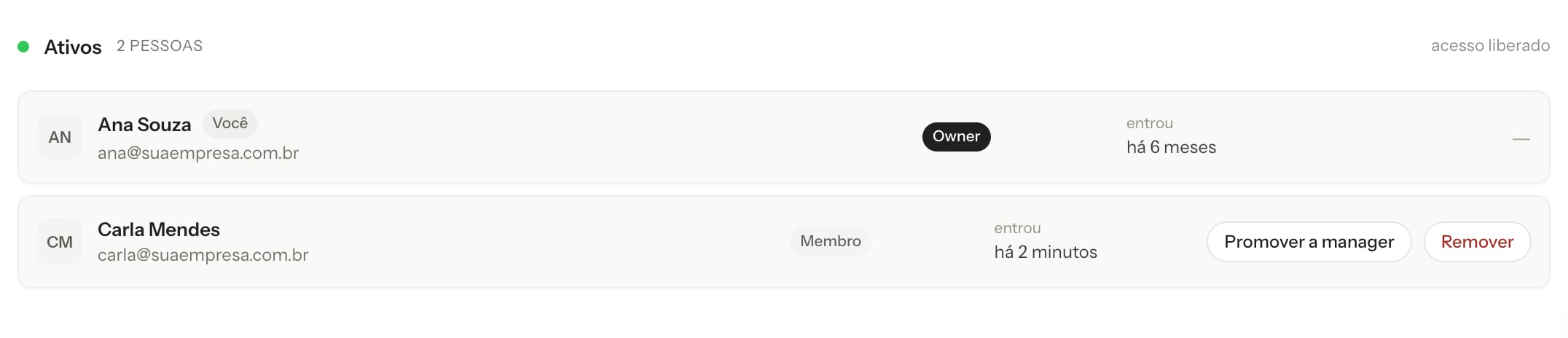
Only the **Owner** changes roles. In **Administration → Team**, in the **Active** section, each person has the action buttons on their own row:
* **Promote to manager:** turns a Member into a Manager.
## Roles
### Owner
Workspace owner. Has access to **everything**, including what no other role can do:
* Manage billing: subscribe to channels, pay invoices and change the payment method.
* Access the [Security](/en/security/introduction) menu: API credentials, IP restriction and SDK configuration.
* Promote a Member to Manager or demote a Manager to Member.
The Owner cannot be removed from the workspace or have their role changed.
### Manager
Runs the day-to-day operation, without access to billing and security:
* Creates, edits and deletes channels and templates.
* Invites people, resends and revokes invitations.
* Removes **only Members**. Cannot remove another Manager or the Owner.
* Sees billing, without changing it, and checks the [Audit log](/en/security/audit).
### Member
Follows the operation, without changing anything:
* Sees channels and templates.
* Does not access Team, billing, Audit log or Security.
### Permissions summary
| Action | Owner | Manager | Member |
| - | :-: | :-: | :-: |
| See channels and templates | ✅ | ✅ | ✅ |
| Create, edit and delete channels and templates | ✅ | ✅ | ❌ |
| See the team and invitations | ✅ | ✅ | ❌ |
| Invite, resend and revoke invitations | ✅ | ✅ | ❌ |
| Remove members | ✅ | Members only | ❌ |
| Promote and demote roles | ✅ | ❌ | ❌ |
| See billing | ✅ | ✅ | ❌ |
| Manage billing | ✅ | ❌ | ❌ |
| See the Audit log | ✅ | ✅ | ❌ |
| Access Security | ✅ | ❌ | ❌ |
Nobody can remove themselves or change their own role.
## Change a role
Only the **Owner** changes roles. In **Administration → Team**, in the **Active** section, each person has the action buttons on their own row:
* **Promote to manager:** turns a Member into a Manager.
 * **Relegate to member:** turns a Manager into a Member.
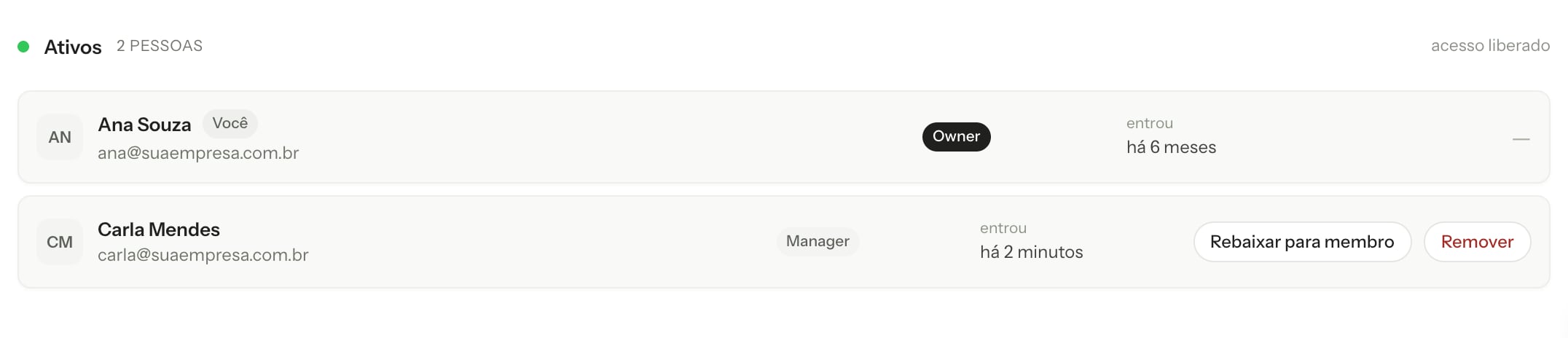 The change takes effect immediately, with no confirmation step, and is recorded in the [Audit log](/en/security/audit). To take the person out of the workspace, use **Remove**.
The Owner has no action buttons: their role cannot be changed or removed.
## Invite people
1. In the dashboard, open **Administration → Team** and click **Invite people**.
2. Enter the emails. Separate them with commas to invite several people at once.
3. Click **Continue**, review the list and click **Send invitations**.
Each person receives their own link by email. The invitation:
* **Expires in 7 days.** After that, send a new one.
* Joins the workspace with the **Member** role. The Owner can promote them to Manager later.
* Is not sent to people who are already in the workspace or already have a pending invitation.
## Track invitations
On the **Team** screen, invitations are grouped into:
* **Active:** people with access.
* **Pending invitations:** waiting for acceptance. You can **Resend** or **Revoke**.
* **Closed:** expired or revoked invitations, kept as history.
## Accept an invitation
The invited person opens the link in the email or, in the dashboard, the **profile menu → Invitations**, and clicks **Accept** or **Decline**. After accepting, the workspace appears in the workspace selector.
Everyone who accepts an invitation joins the workspace as a **Member**, always. You cannot choose another role in the invitation. If they need more access, the Owner promotes them to Manager afterwards, in [Change a role](#change-a-role).
This documentation is built and hosted on [Mintlify](https://mintlify.com), a developer documentation platform.
The change takes effect immediately, with no confirmation step, and is recorded in the [Audit log](/en/security/audit). To take the person out of the workspace, use **Remove**.
The Owner has no action buttons: their role cannot be changed or removed.
## Invite people
1. In the dashboard, open **Administration → Team** and click **Invite people**.
2. Enter the emails. Separate them with commas to invite several people at once.
3. Click **Continue**, review the list and click **Send invitations**.
Each person receives their own link by email. The invitation:
* **Expires in 7 days.** After that, send a new one.
* Joins the workspace with the **Member** role. The Owner can promote them to Manager later.
* Is not sent to people who are already in the workspace or already have a pending invitation.
## Track invitations
On the **Team** screen, invitations are grouped into:
* **Active:** people with access.
* **Pending invitations:** waiting for acceptance. You can **Resend** or **Revoke**.
* **Closed:** expired or revoked invitations, kept as history.
## Accept an invitation
The invited person opens the link in the email or, in the dashboard, the **profile menu → Invitations**, and clicks **Accept** or **Decline**. After accepting, the workspace appears in the workspace selector.
Everyone who accepts an invitation joins the workspace as a **Member**, always. You cannot choose another role in the invitation. If they need more access, the Owner promotes them to Manager afterwards, in [Change a role](#change-a-role).
This documentation is built and hosted on [Mintlify](https://mintlify.com), a developer documentation platform.