> ## Documentation Index
> Fetch the complete documentation index at: https://developer.omni.z-api.io/llms.txt
> Use this file to discover all available pages before exploring further.
# IP restriction
> Limit which IP addresses can call the Omni Z-API API
export const projectName = 'Omni Z-API';
IP restriction defines which addresses can call the {projectName} API. When it is on, a leaked Secret Key does not work outside the servers you allowed.
## How it works
* **Empty list:** any IP is accepted. This is the default.
* **With IPs registered:** only the IPs in the list can call the API. Calls from other addresses are rejected.
* **Exact match:** each IP is compared exactly as registered. Ranges and CIDR notation (for example, `203.0.113.0/24`) are not accepted: register each IP.
* **Scope:** the restriction applies to **all** calls authenticated with the **Secret Key**, from any IP: channels, messages, templates, flows and webhooks. No Secret Key route is left out.
* **IP considered:** the IP the connection reaches the API from. Headers such as `X-Forwarded-For` are ignored, so sending a different IP in them has no effect.
* **Time to take effect:** after you save, the new list can take **up to 10 minutes** to apply in the API. This applies to adding, removing or clearing the list. During that window, the previous rule may still apply. The [channel connection SDK](/en/channels/connect-channel), which uses the Public Key, is controlled by the [SDK authorized domains](/en/security/sdk-domains).
## Register the IPs
1. In the dashboard, open **Administration →** [Security](https://app.omni.z-api.io/app/security).
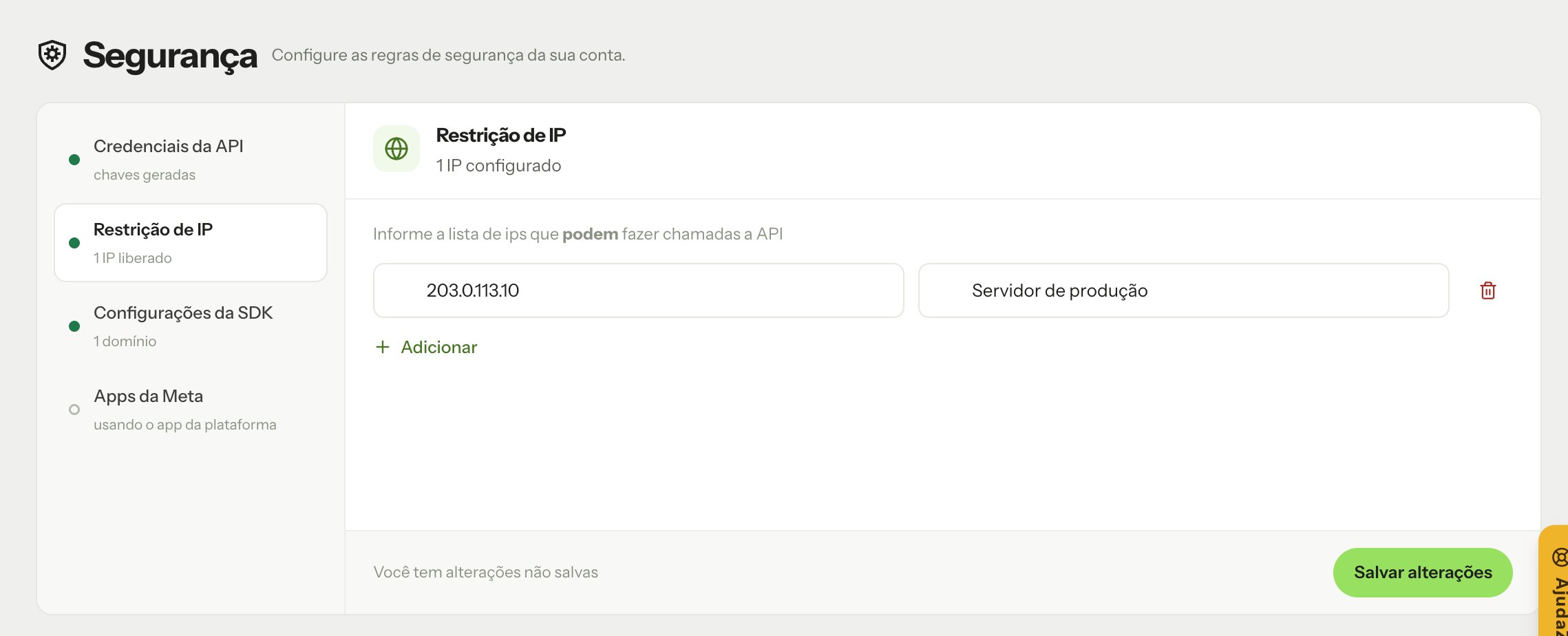
2. Open the **IP Restriction** tab and click **Configure now**.
3. Enter the IP and, optionally, a description to identify it. Click **Add** to include another IP.
4. Click **Save changes**.
5. The system asks for a **confirmation code** sent to you; enter the code to complete the change.
Only the workspace **Owner** can change the IP list.
 When moving to a new server, register the new IP **before** turning off the old one and wait up to 10 minutes. This way calls are not rejected during the switch.
Register the **outgoing IP** of the servers that call the API. If your environment changes IP (services with dynamic IP, for example), the API starts rejecting calls as soon as the IP changes.
## Response for a blocked IP
When the call comes from an IP outside the list, the API responds `400` with the source IP:
```json theme={null}
{
"error": "203.0.113.10 not allowed"
}
```
If the source IP cannot be identified, the message is `"ip not allowed"`.
To fix it, register the IP shown in the message or call the API from a server that is already allowed.
This documentation is built and hosted on [Mintlify](https://mintlify.com), a developer documentation platform.
When moving to a new server, register the new IP **before** turning off the old one and wait up to 10 minutes. This way calls are not rejected during the switch.
Register the **outgoing IP** of the servers that call the API. If your environment changes IP (services with dynamic IP, for example), the API starts rejecting calls as soon as the IP changes.
## Response for a blocked IP
When the call comes from an IP outside the list, the API responds `400` with the source IP:
```json theme={null}
{
"error": "203.0.113.10 not allowed"
}
```
If the source IP cannot be identified, the message is `"ip not allowed"`.
To fix it, register the IP shown in the message or call the API from a server that is already allowed.
This documentation is built and hosted on [Mintlify](https://mintlify.com), a developer documentation platform.